Skip to content
View in the app

A better way to browse. Learn more.

BluegrassPreps.com

A full-screen app on your home screen with push notifications, badges and more.

To install this app on iOS and iPadOS
  1. Tap the Share icon in Safari
  2. Scroll the menu and tap Add to Home Screen.
  3. Tap Add in the top-right corner.
To install this app on Android
  1. Tap the 3-dot menu (⋮) in the top-right corner of the browser.
  2. Tap Add to Home screen or Install app.
  3. Confirm by tapping Install.

Write the Caption #1

Featured Replies

Not a title, but where's the TP?

Garbage in, garbage out.

  • Author

"Mary, hold all my calls, I'm backed up."

Another drop call.

Thes are just too, too funny.

"Thank you for reaching the KHSAA, we are currently away from our office, but leave your name, number and we'll get back with you"

"Mary, hold all my calls, I'm backed up."


"Thank you for reaching the KHSAA, we are currently away from our office, but leave your name, number and we'll get back with you"


Both of these are great.............Classic!! :laugh::laugh:
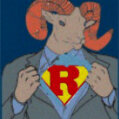
OH NO....:scared::sssh:..Now what was that I have to type in to Flush!

Archived

This topic is now archived and is closed to further replies.

Recently Browsing 0

  • No registered users viewing this page.

Account

Navigation

Search

Search

Configure browser push notifications

Chrome (Android)
  1. Tap the lock icon next to the address bar.
  2. Tap Permissions → Notifications.
  3. Adjust your preference.
Chrome (Desktop)
  1. Click the padlock icon in the address bar.
  2. Select Site settings.
  3. Find Notifications and adjust your preference.