Skip to content
View in the app

A better way to browse. Learn more.

BluegrassPreps.com

A full-screen app on your home screen with push notifications, badges and more.

To install this app on iOS and iPadOS
  1. Tap the Share icon in Safari
  2. Scroll the menu and tap Add to Home Screen.
  3. Tap Add in the top-right corner.
To install this app on Android
  1. Tap the 3-dot menu (⋮) in the top-right corner of the browser.
  2. Tap Add to Home screen or Install app.
  3. Confirm by tapping Install.

Chane Behanan Reopens Recruitment

Featured Replies

The kid very well may stick with UC, but I think he will start looking around again now that he is away from Cincy.

Did you even bother to read the thread???

  • Replies 33
  • Views 2.2k
  • Created
  • Last Reply
Did you even bother to read the thread???

Just wanted to be redundant.


Yep...thought this could happen when he left Cincy. It happens to a lot of kids that move away and have verbals to various schools.
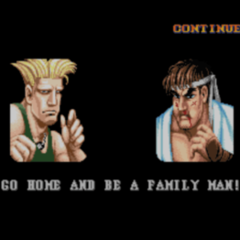
Just wanted to be redundant.


I'll take that as a no...

Archived

This topic is now archived and is closed to further replies.

Recently Browsing 0

  • No registered users viewing this page.

Account

Navigation

Search

Search

Configure browser push notifications

Chrome (Android)
  1. Tap the lock icon next to the address bar.
  2. Tap Permissions → Notifications.
  3. Adjust your preference.
Chrome (Desktop)
  1. Click the padlock icon in the address bar.
  2. Select Site settings.
  3. Find Notifications and adjust your preference.