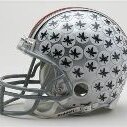
October 28, 200718 yr I'm not too big on Ohio State this year and don't know much about their players.. but this guy is jacked!
October 28, 200718 yr I'm not too big on Ohio State this year and don't know much about their players.. but this guy is jacked! OR Juiced!
October 28, 200718 yr I heard that when that pic was taken he was just walking to english class, not playing football. Back to the game: I really have no connection to either team and I just hope to see a good game no matter who wins. Although i'm gonna cheer for PSU cause they're the dog.
October 28, 200718 yr Author My roommate wont stop playing PS2, did PSU do the white out tonight? Come on now... now #1 in the country coming in of course.
October 28, 200718 yr Just said "look man, you've been playing that game since noon, turn the game on! and he did
October 28, 200718 yr Author Just said "look man, you've been playing that game since noon, turn the game on! and he did What... thats not even good for the PS2 hes gonna burn that thing up!
October 28, 200718 yr SA, What position is #50 in that pic? I'm trying to see if he really looks like that all the time
Archived
This topic is now archived and is closed to further replies.